Vivid Image strives for timely, responsive, and efficient communication, allowing us to create solid relationships and produce successful projects. In this article, we want to address best communication practices for print project revisions using adobe reader’s commenting tools. Not sure how to use these tools? No worries! It is user-friendly, and we will walk you through the process.
Why use comments?
After our designers finish a print project layout, we’ll provide a pdf to show the new or updated design. This pdf is for you to review to give feedback on layout, copywriting, color, and graphics. The PDF Comment tool is the best way to show us your change location and direction for the change. It will save you time describing where you want a change made. If you typically print out the pdf to show changes, you no longer need to spend time printing and saving your paper and ink. For the designers at Vivid Image, it saves them time trying to understand your instructions or retyping your handwriting if you made them on paper. A win, win for all!
How comments work.
#1: Download and open the pdf on your computer—it typically automatically opens in Adobe Reader or your browser (Safari, Chrome, Firefox, etc.). If neither of those options is working, you can download Adobe Reader. If you use a Google Chromebook or want to view the pdf on your browser with commenting options, you will need to install the Adobe Acrobat plug-in. Please get in touch with us if you have questions about getting this installed and running. The comment tools will be located slightly differently than in this article.
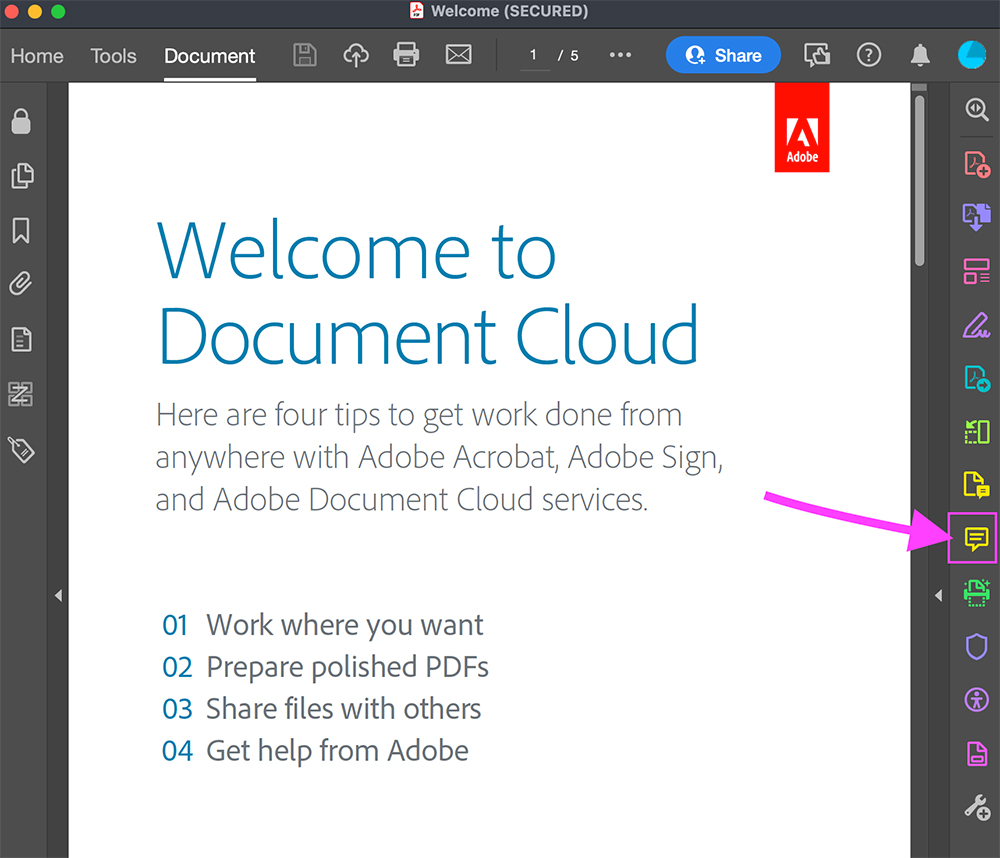
#2: Look for the yellow comment icon on the right-hand side of the program. This will open a comments area on the right and bring up the comment tools on the top of the pdf (both icons and tools are highlighted in the screenshot below).
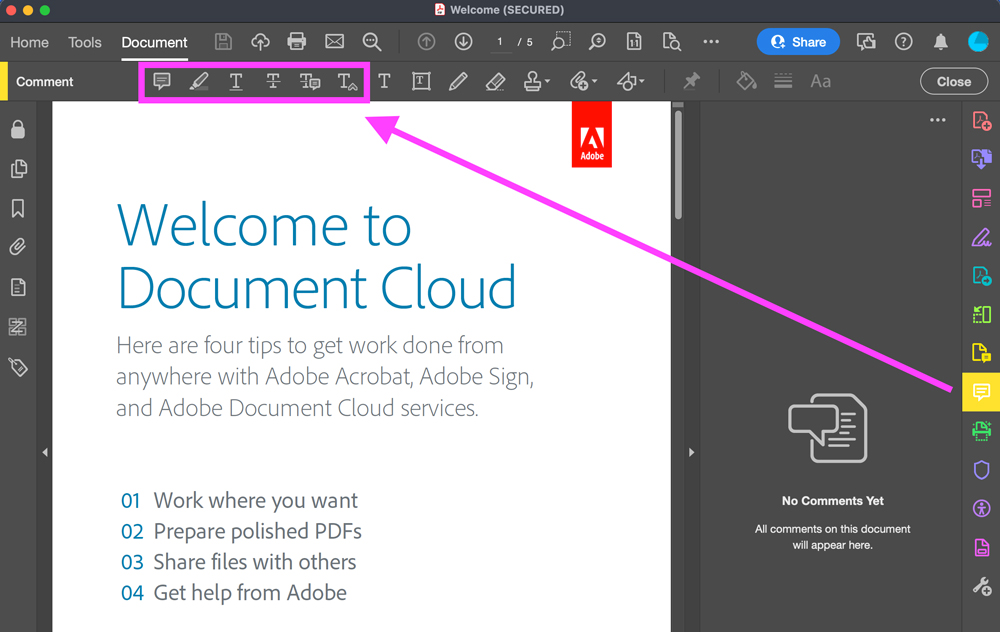
#3: Pick the right comment tool for your use. Let’s go over the most basic options:
General Comment
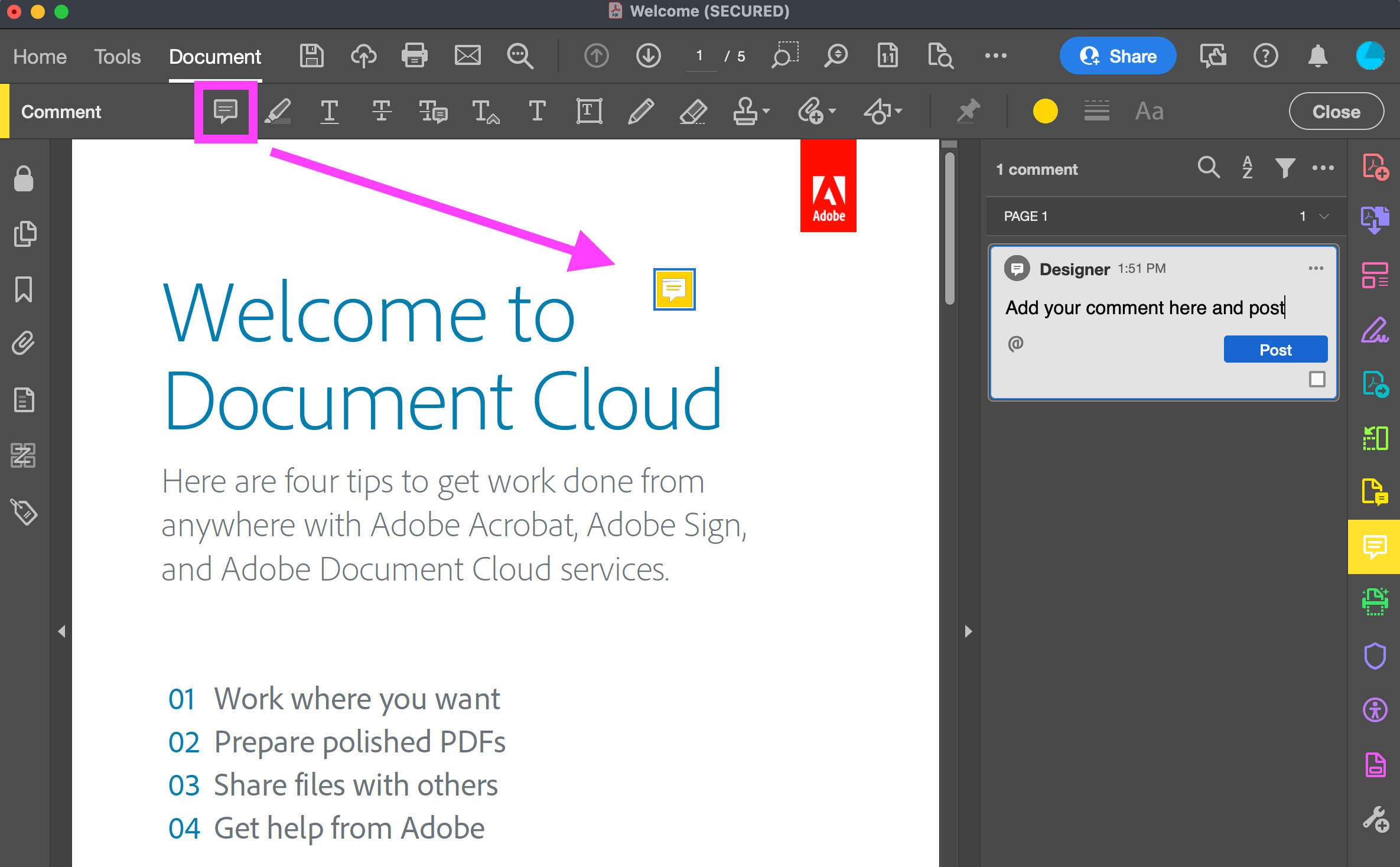
Use general comments for anything that isn’t directly related to the text.
Highlighter
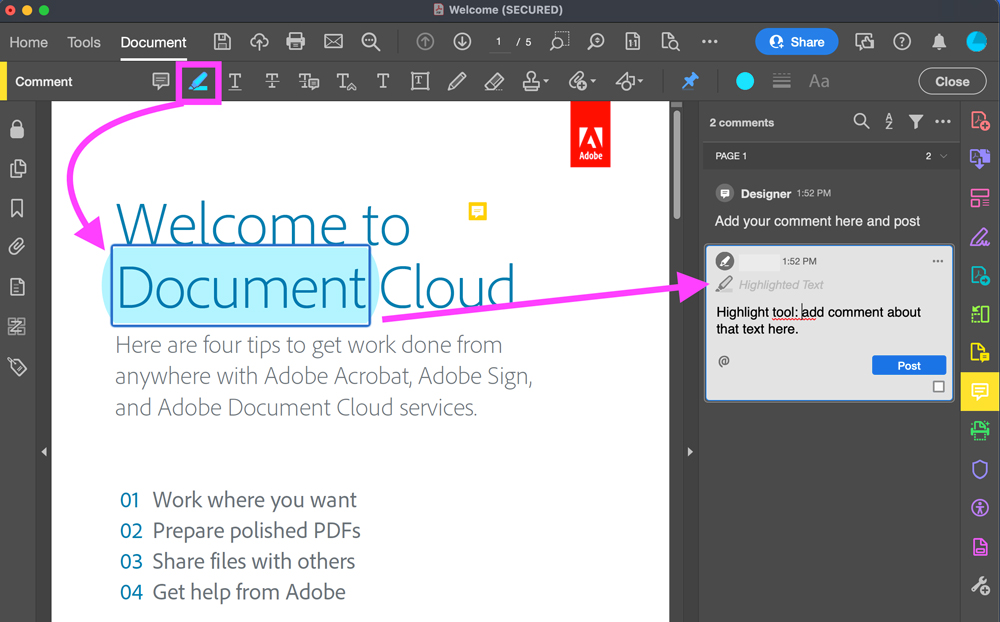
Highlight any text you want to discuss more than just simple text changes. Maybe this highlighted word should be bolded or pulled out larger.
Strike Out Text
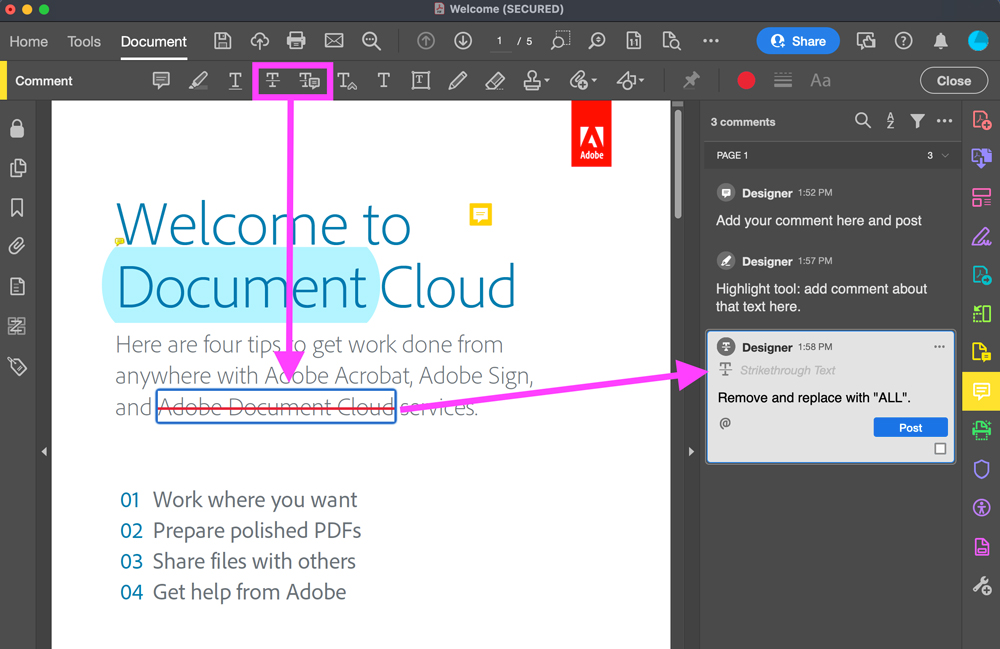
Use strike-through text if you are deleting and replacing text. This helps us know exactly what to delete and you can place the new text in the comment.
Insert Text
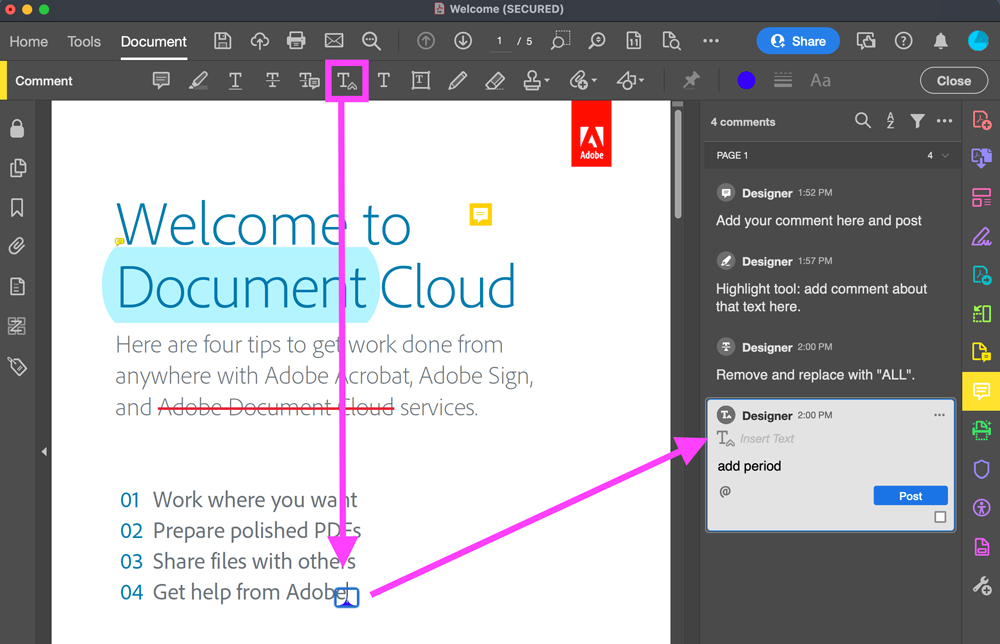
Simply want to insert text? Use this tool to show us exactly where it goes and put in the comment what will be going in that spot.
#4: Start going through your document for changes. If you aren’t comfortable with all the tools listed above, only use one or two just as long as you can describe what changes you want us to make and the general location.
#5: Need to edit a comment and/or delete it? Find the comment in the right column you want to edit and double-click your comment text. This should allow you to edit. If it is not working, click once anywhere on the comment, select the menu icon on the top right of its box, and find the edit option. This is also where you can find an option to delete it.
#6: Save and send the pdf back to your account director. Provide any extra notes in your email about changes to the document, and ask us any questions!